Tap to Pay lets nonprofits collect contactless payments directly from a compatible smartphone — no external terminal needed. With Springly, payments are automatically recorded in your books. It's a fast, mobile, and secure way to collect payments at your events or in the field.
What is Tap to Pay on smartphone?
What are the benefits for your nonprofit?
What do you need to use Tap to Pay?
How do you activate Tap to Pay with Springly?
How do you collect a payment with Tap to Pay?
What payment methods are accepted?
What should you do if a payment fails?
Is Tap to Pay on smartphone secure?
What is Tap to Pay on smartphone?
Tap to Pay turns your compatible smartphone into a contactless payment terminal. You accept a payment simply by holding a card, phone, or connected device near the back of your device.
What are the benefits for your nonprofit?
- Simple collection straight from your smartphone
- No cash drawer or payment terminal needed
- Payments automatically synced with Springly
- Flexible, no commitment required
What do you need to use Tap to Pay?
You need an NFC-compatible smartphone running the required version of Android or iOS.
- How do I know if my smartphone is NFC-compatible? Find out more here.
-
Supported device examples:
- Android 12 or later
- Google Pixel : Pixel 3 and later
- Samsung Galaxy : A series, S10–S24, Note10/20
- OnePlus : OnePlus 6 and later
- Oppo : A73, A74, Reno5, Reno6, Find X
- Xiaomi : Mi 10T, Note 10/11, Poco X4
- iOS 17.3
iPhone XS or newer
- Android 12 or later
-
The app will not appear in the store on unsupported Android versions.
- Tap to Pay must be activated in your Springly account
How do you activate Tap to Pay with Springly?
- Go to the Tap to Pay section under the payment menu in your Springly account
- Add your smartphone
- You're all set — start collecting payments instantly from your phone
How do you collect a payment with Tap to Pay?
If NFC is not enabled, you'll be able to open the app, but nothing will happen when you try to confirm the amount using the keypad — payment can't be triggered without NFC. To check whether your smartphone is compatible, see this article.
- Open the Springly mobile app
(Download it from your app store under the name "AssoConnect - Tap to Pay".
👉 The more it's downloaded, rated, and reviewed, the more visible and easy to find it will be for future users!) - Enter the amount to collect
- Tap "Confirm"
- Present your smartphone to the customer
- The customer taps their card or contactless device
- A confirmation appears on screen
You've just collected your first contactless payment from your smartphone!
What payment methods are accepted?
- Contactless credit and debit cards (Visa, Mastercard…)
- Digital wallets (Apple Pay, Google Pay, Samsung Pay…)
- Compatible connected devices (smartwatches, rings…)
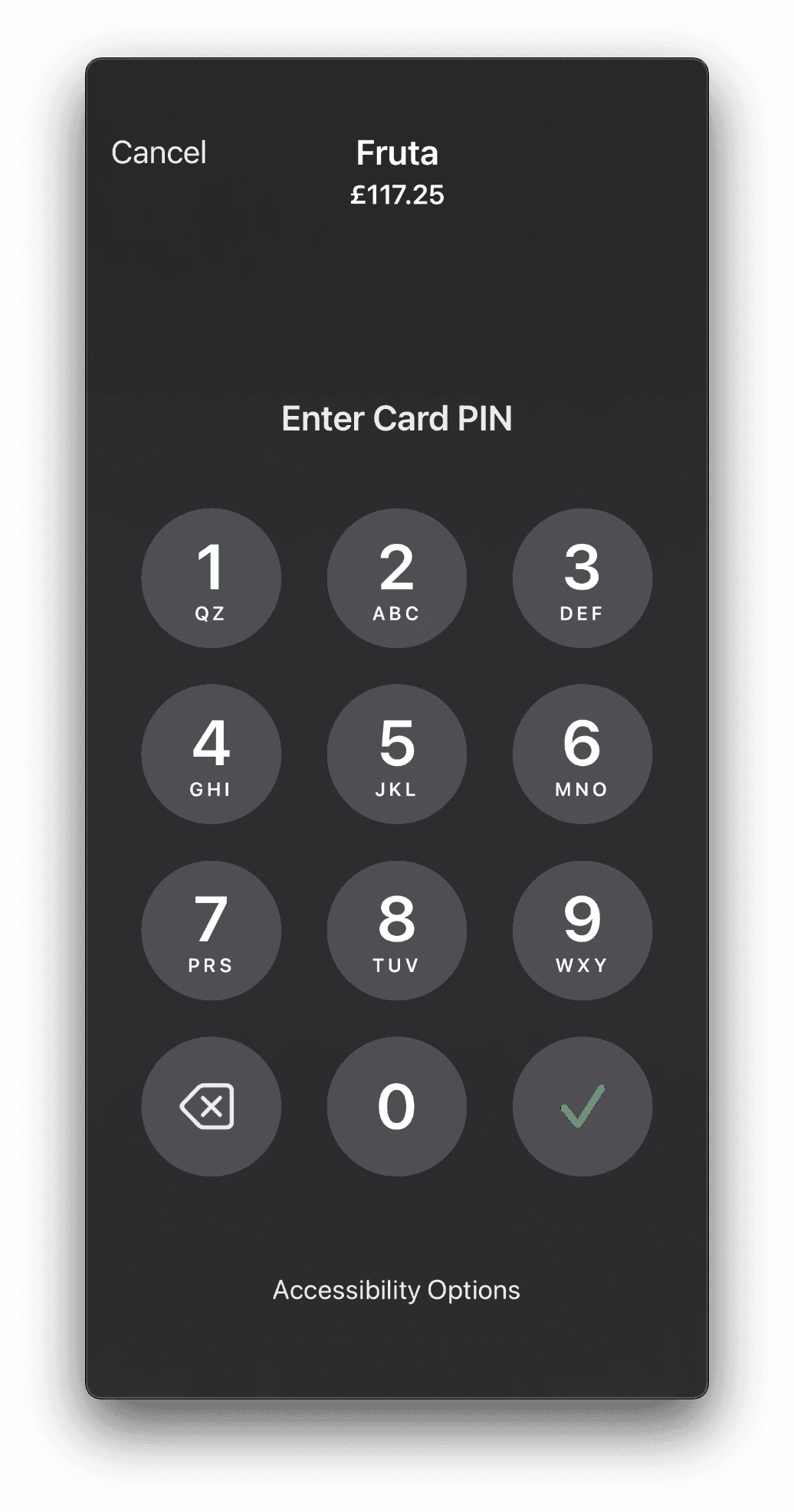
How are PIN payments handled?
For payments above $50, a PIN entry is required through the secure screen on your smartphone.
- The customer enters their PIN on the interface
- If the PIN fails, they can check in their banking app that PIN usage is enabled
What should you do if a payment fails?
Check out our dedicated article:
👉 What to do if Tap to Pay fails?
Is Tap to Pay on smartphone secure?
Yes. Tap to Pay is built on NFC technology, and like online payments, transactions are processed by our certified payment partner.
- Payments are end-to-end encrypted
- No card numbers are stored on your device
- Apple does not retain any transaction information
Are there any fees?
Payment Fees are 1.8% per transaction on the amount collected.
With Tap to Pay on smartphone, you collect payments easily and securely — no extra hardware needed. Perfect for nonprofit events, on-the-go collections, and shared use among volunteers.
Comments
0 comments
Article is closed for comments.