Tap to Pay on iPhone lets nonprofits collect contactless payments directly from a compatible iPhone — no external terminal needed. With Springly, payments are automatically recorded, giving you a fast, mobile, and secure solution.
- What is Tap to Pay on iPhone?
- What are the benefits for your nonprofit?
- What are the requirements to use Tap to Pay?
- How do I activate Tap to Pay with Springly?
- How do I collect a payment with Tap to Pay?
- What payment methods are accepted?
- How do I handle PIN payments?
- What should I do if a payment fails?
- Is Tap to Pay on iPhone secure?
- Are there any fees?
What is Tap to Pay on iPhone?
Tap to Pay on iPhone turns your iPhone into a contactless payment terminal. You can accept payments by holding a payment method near the back of the iPhone.
What are the benefits for your nonprofit?
- Easy collection right from your iPhone
- No terminal or physical Petty cash required
- Payments sync directly with Springly
- Flexible, no commitment required
What are the requirements to use Tap to Pay?
- iPhone XS or later (the app will not appear in the App Store on unsupported devices)
- iOS 17.3 or later
How do I activate Tap to Pay with Springly?
Add your iPhone in the Tap to Pay section of the payment menu in your Springly account
Download the app
Sign in using the code you received by email
On your first sign-in, Apple will ask you to accept the Terms of Service and link your Apple account to Tap to Pay on iPhone before your first payment. This may take a few seconds.
You're all set — start collecting payments right from your iPhone!
Learn more
How do I collect a payment with Tap to Pay?
- Open the Springly mobile app
- Enter the amount to collect
- Tap Tap to Pay on iPhone
- Present the iPhone to the customer
- Ask the customer to hold their card or device horizontally and flat against the contactless symbol on the iPhone screen. A PIN may be required.
- A confirmation appears on screen
- You've collected your first payment directly on your iPhone!
What payment methods are accepted?
- Contactless credit/debit cards (Visa, Mastercard…)
- Apple Pay
- Digital wallets (Google Pay, Samsung Pay…)
- Compatible wearables (watches, rings…)
How do I handle PIN payments?
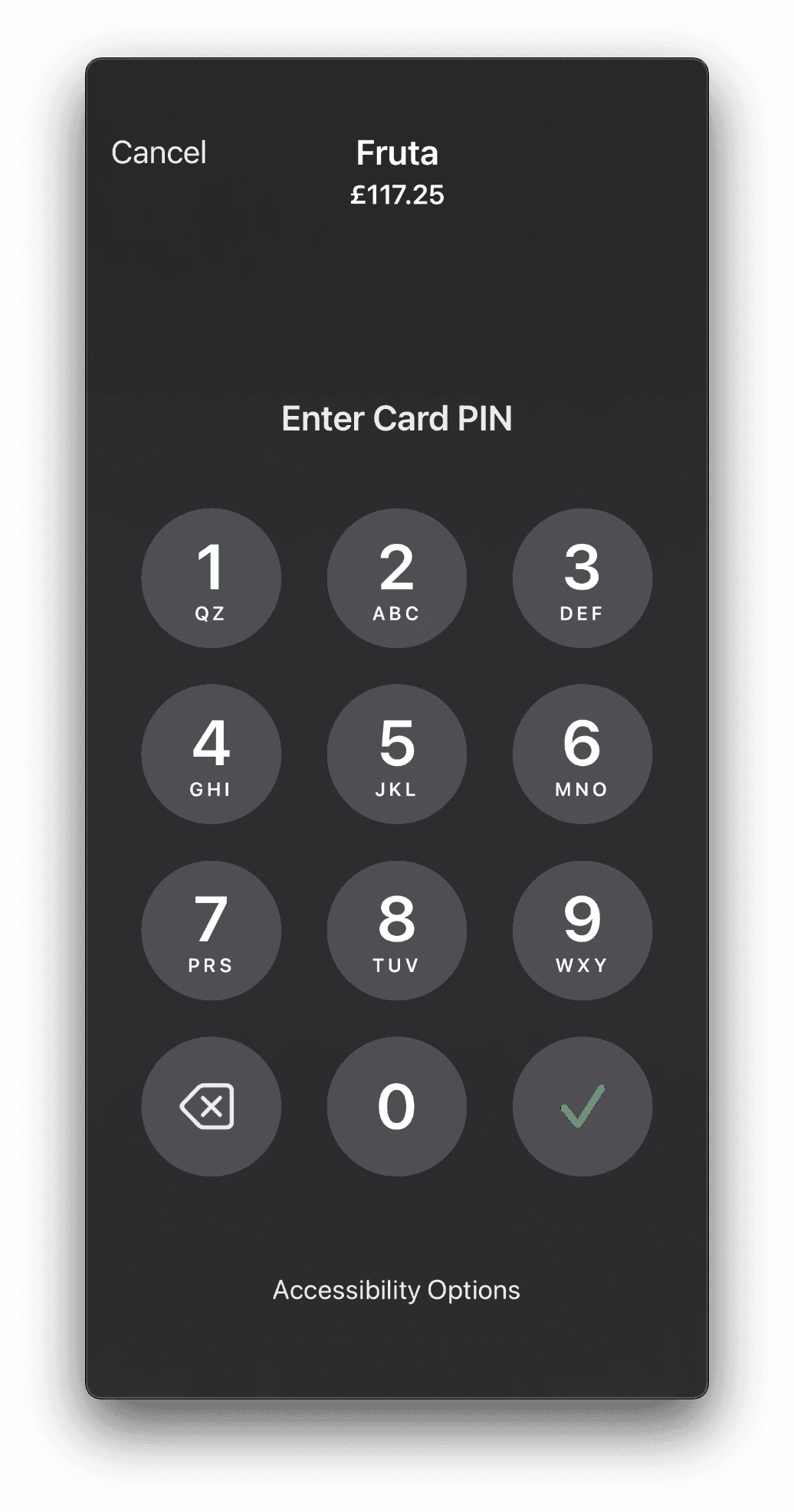
For amounts over $50, Tap to Pay automatically prompts a PIN entry through a secure on-screen interface. The customer is asked to enter their PIN.
You can enable accessibility options at the bottom of the screen to allow PIN entry for customers who need it.
What should I do if a payment fails?
Check out our dedicated article:
👉 What to do if Tap to Pay fails?
Is Tap to Pay on iPhone secure?
Yes. Tap to Pay is built on Apple Pay technology:
- Payments are end-to-end encrypted
- No card numbers are stored on the device
- Apple does not retain any transaction information
Are there any fees?
The app is free. You can use it on any iPhone belonging to your nonprofit.
Springly charges a payment fee of 1.8% per transaction on the transaction amount
Comments
0 comments
Article is closed for comments.