Your blog article pages support several layouts and designs. This article walks you through how to customize the design of your articles and covers the following topics:
Available design examples
Below are a few examples of available layout templates.
Featured article + 3-column layout
3-column layout
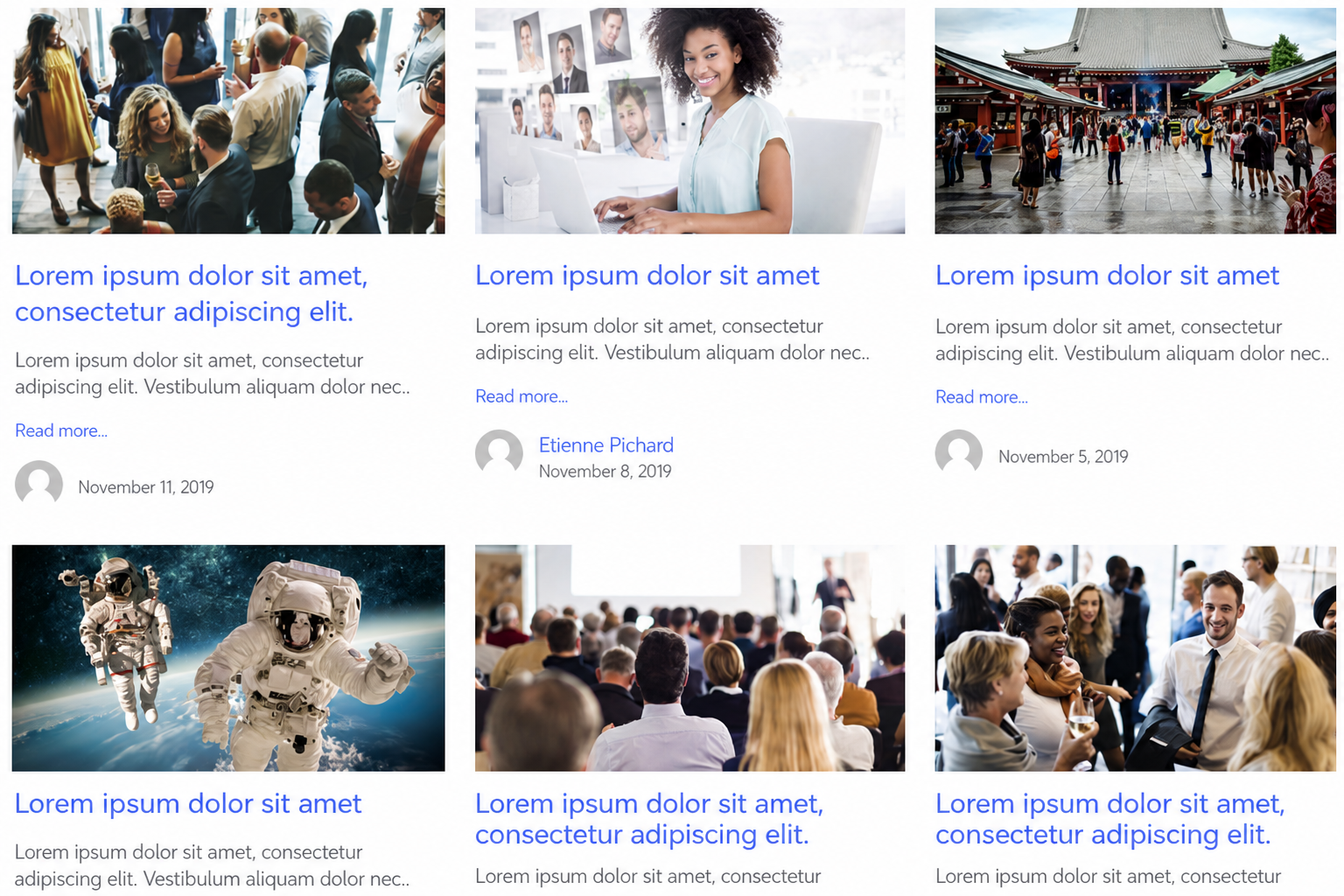 2-column layout
Choosing a template for your article page
To change the layout, go to Website > Smart pages > Blog Pages. Then select your article page and click the Choose a template button.
If no page is selected, or if you haven't created any articles yet, the Choose a template button won't appear. To create your blog page and your first article, check out our two dedicated articles: Creating and managing blog pages & Writing and formatting a blog article.
After clicking Choose a template, you can select from the available templates:
Once you've made your choice, click Save and then preview the result on your website:
Article display order
Articles are displayed based on their publication dates, with the most recent ones shown first. To change the order, simply adjust the dates accordingly.
Hover over an article and click Manage. You can then update the article's publication date as needed.
Don't forget to click Save for the change to take effect.
Go further:
Comments
0 comments
Article is closed for comments.