Before starting
From your administrative space, you can publish news about your organization on your website and share it on your social media in just a few clicks. In this article, we will explain how to do this.
Add an article
After creating an Article/Blog page, you can start to add content to this page.
You can add content from the "Website" feature.
- Go to Website > Specific Pages > Blog Pages
- Click on "New Blog Post"
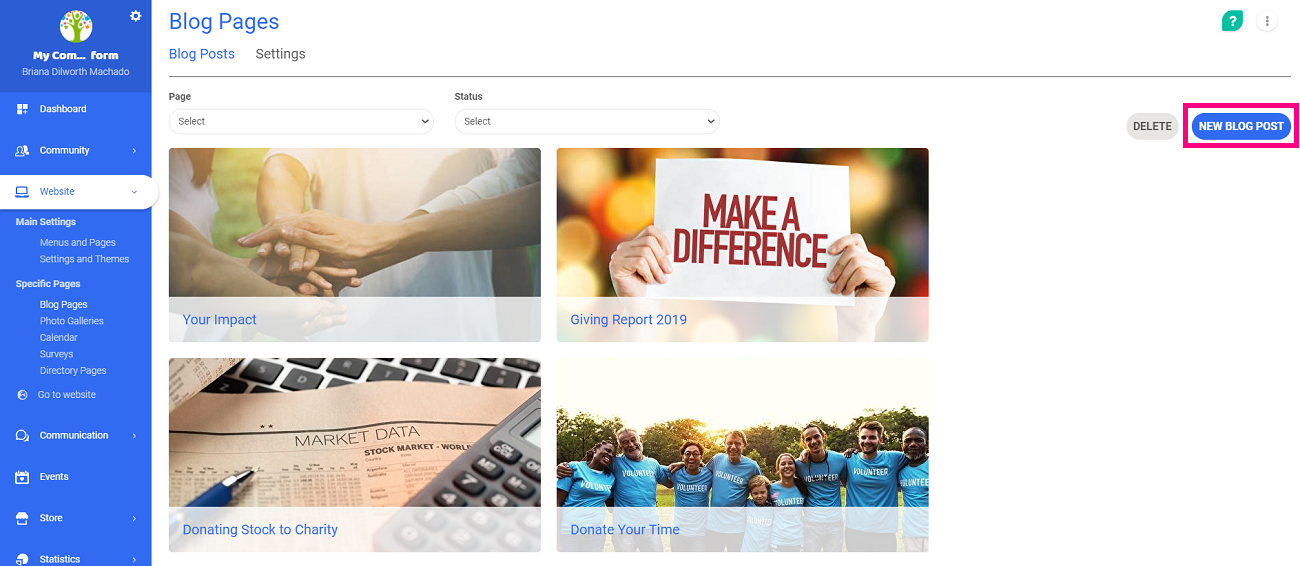
- Once you reach the editing page, fill in the fields: title, photo, publication date (your article will be posted on the date indicated here), post content (text), etc.
You can also attach files that will be available for your members to view and download.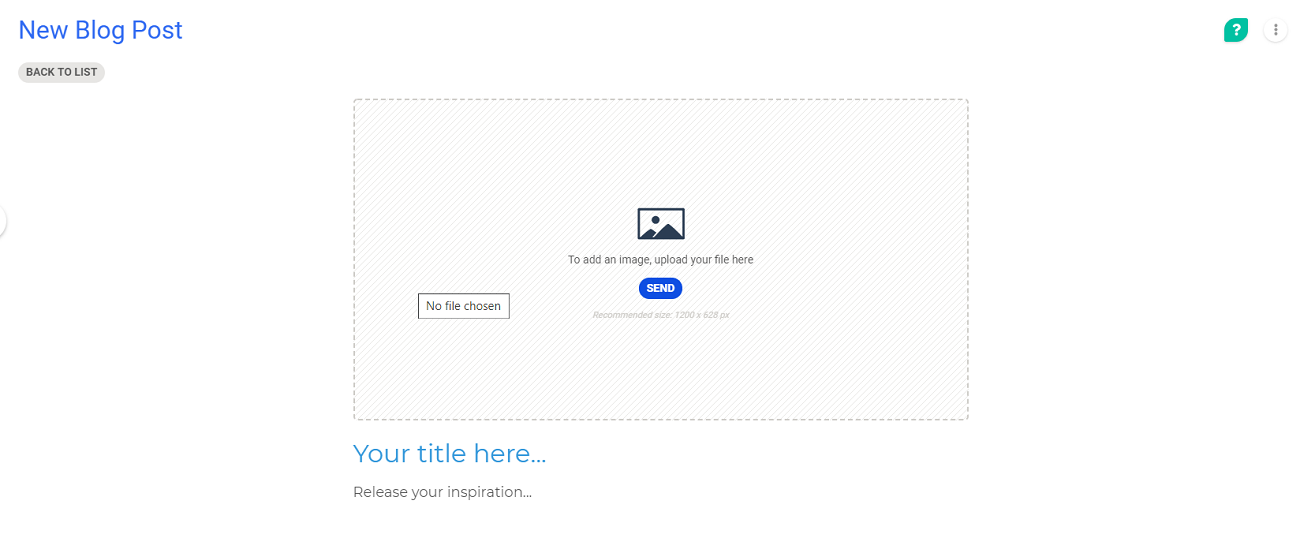
- Choose the blog page that you want your article published on.
- Don't forget to save your article by clicking "Post" or "Save as Draft".
Your article is now published!
You can modify or delete this article at any moment by clicking on "Manage" or "Delete" that appears when you hover your mouse over the article in question.
Comments
0 comments
Article is closed for comments.