Before Starting
Several of the software's applications allow you to share content or to communicate on your social media (Facebook, Twitter, LinkedIn, Google +, etc.)
Example: when you send an email, you can add links to your social media. If someone clicks on it, they will be redirected towards your social media.
To manage all of your social media (and make sure you only have to set them up once), you can set them up directly in the software.
Go to the social media management page
Click on the  icon and go to advanced settings. Scroll down to the other settings to see the social media options. You will then see social sharing and social media.
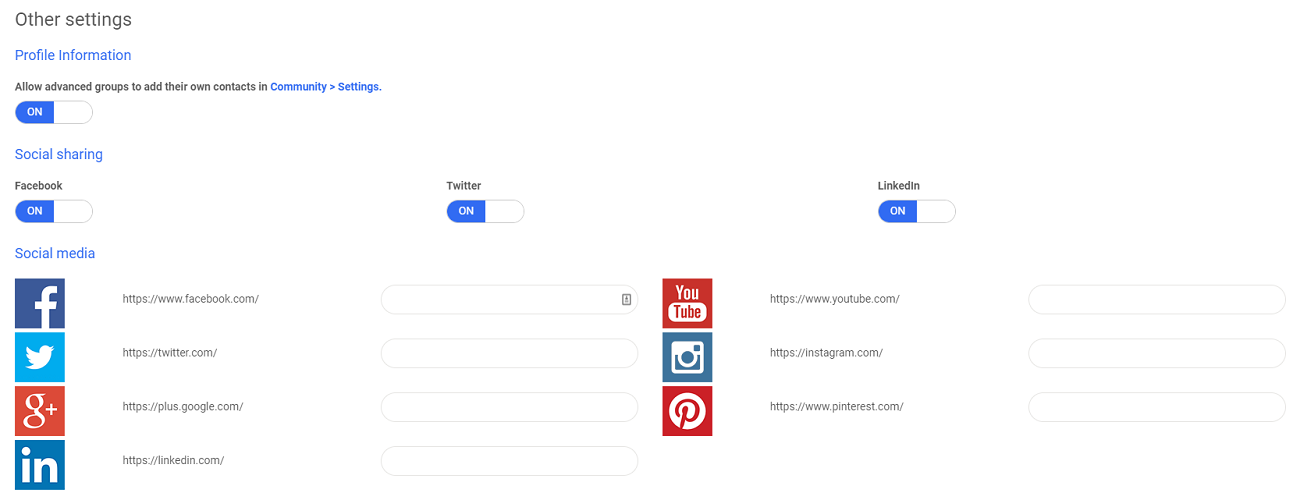
Social sharing
In Social sharing, you can activate the social media accounts that you want to be open to users.
For example, if you activate Facebook and deactivate LikedIn, people can share content on Facebook, but not on LinkedIn.
Social media
The Social media section allows you to set up your pages (like your Facebook fan page for example) so that users can access your social media (from an email or from your Website for example).
In this section, you can add all of the social media that you use. If you use Facebook, add your account link by filling in the section after the "/" from facebook.com. For example, for AssoConnect, we would use "AssoConnect1" after the "/" so that it links to our Facebook account.
Comments
0 comments
Article is closed for comments.