Before Starting
You can publish and update your website without having any technical skills. Discover how to personalize your theme, create pages, add menus and organize the structure of your website.
You will below a presentation of the main functions of the feature, as well as links towards other articles.
This article covers the following points:
The Website Feature
Main Idea
Managing your website brings together two aspects:
- The domain name: the web address (URL, starting with https:) that allows to display the content of the website when entered into the search bar
- The content: this is composed of the themes, the menus and pages that are created through the software
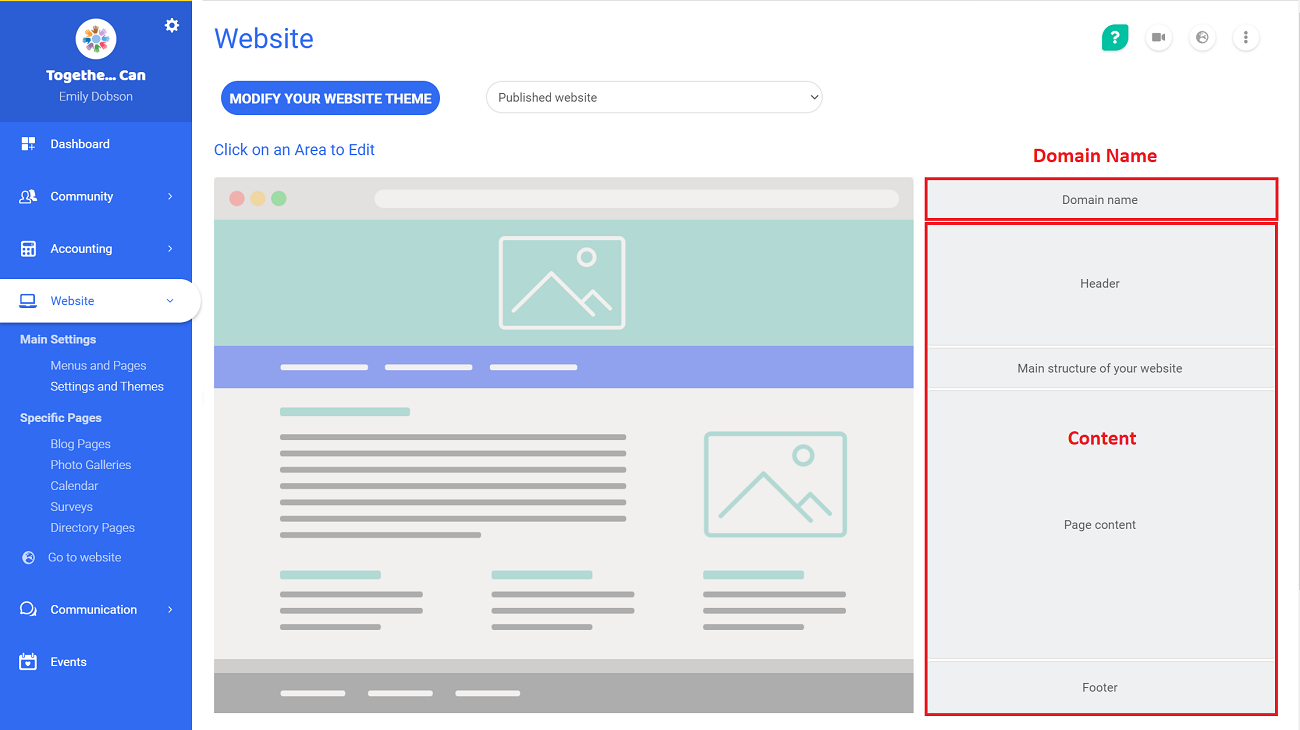
You can publish your website using the domain name given by default. This is in the form of "my-nonprofit.assoconnect.com", or "my-website".
How It Works
From the website feature, you can edit the content of your website by creating:
- Pages, that can be specific, based on a model, or customized
- A theme, that you can adapt as much as you want, as well as a website structure
- A design for the footer and header of the pages
The domain name can be personalized by modifying the part "my-website" in the domain name, or by linking a domain name that is personalized to your website.
Main Functions
Personalizing your Website
In order to create a website that fits your nonprofit, you can choose a theme and define the design of the website overall. It is also possible to modify more advanced parameters, such as the main colors, the menus, or even the background.
Other elements can be personalized:
- The design of the header and footer
- The favicon, which is the icon next to your URL
- The short, which is the "my-website" part of the domain name by default
Managing the Website's Structure
By creating menus and placing your pages into it, you will create a structure to your website. It is possible to arrange the order of the elements depending on your needs.
The visibility of your menus and page can also be set individually in order to limit the access of certain sections to certain groups or categories of people.
Creating Pages
The easiest option to start is to create specific pages. These are based on a template or the usage (blog page, calendar...) and does not require any formatting.
To go further, you can create personalized pages, that you build from A to Z. Here again, the set up is made easy so that you can directly place elements on the page. This makes formatting easy. In particular, you can add:
- A background
- Text blocs, images and videos
- Buttons to redirect the visitor to another page
Personalizing Your Domain Name
By default, a domain name in the form of "my-site.assoconnect.com" will automatically be assigned to your AssoConnect platform. If you wish, you can link a custom domain name to your platform. It can be either:
- One that we buy and manage for you
- One that you have already purchased that can then be linked to your platform
Setting It Up
Publishing Your Website
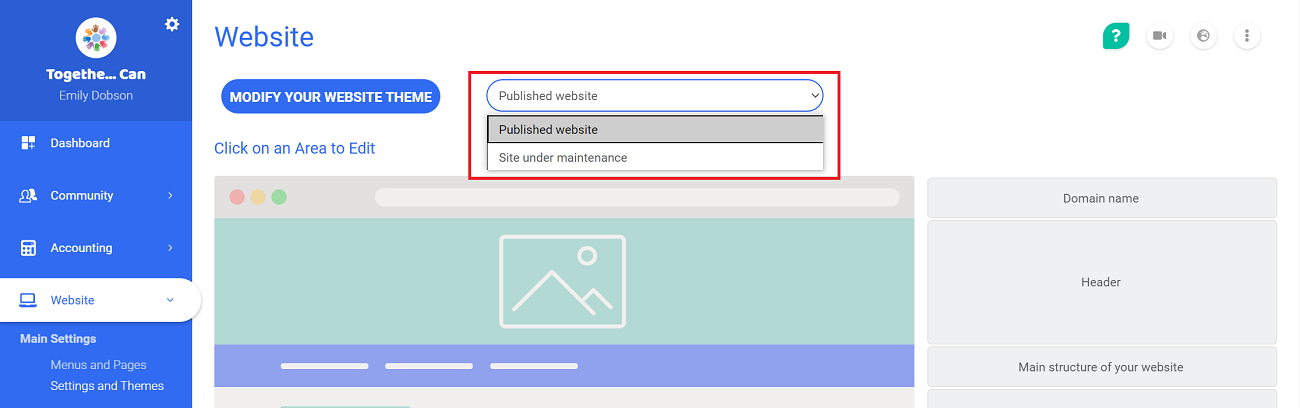
By default, your website is visible to all, which means it is automatically on the published website option. If needed, you choose to put the website under construction from the page Website > Settings and Themes. This will show a page explaining that your website is temporarily under construction and not visible for the time being.
Managing Your Sign Up/Sign In Page
Create your sign up page to allow people wishing to sign up to create an account on your software. Just like during a campaign or a ticketing event, you can configure which information you wish to ask.
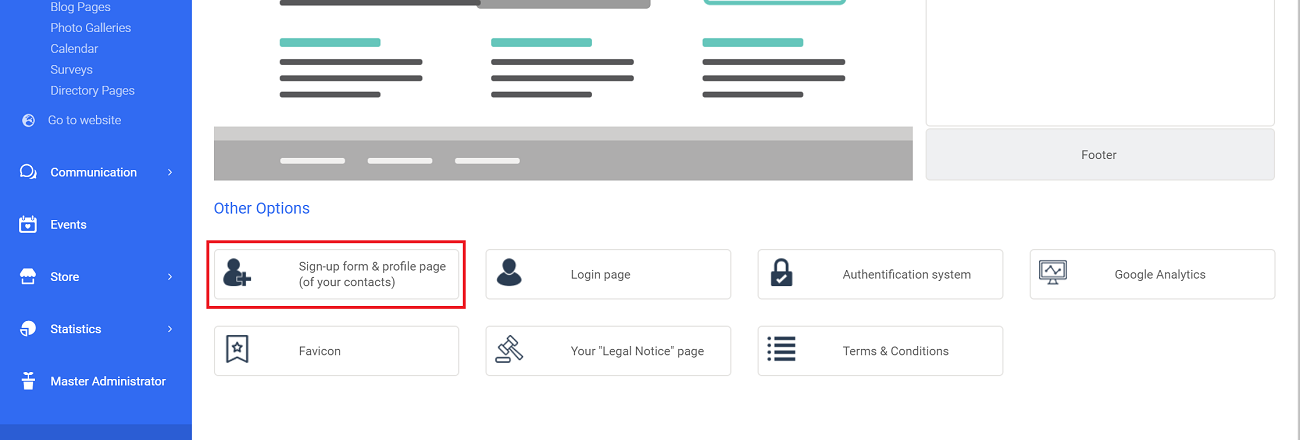
You can also personalize your sign in options:
- By modifying its design
- By setting up authentication options (to connect via a Google account or to restrict the sign in to a specific domain)
- By adding a sign in button in your menu
If you are an independent advanced group, that has activated the option to have your own website, you will not have options of website (favicon, sign up page, Google Analytics, etc.). These settings are only available on the main platform.
Comments
0 comments
Article is closed for comments.