Before starting
From the Website application, you can manage the visibility of your menus and pages. Some of them can be public or only accessible to certain people (members of the community or groups).
This article relates to the following points:
- Go to the menus and pages of the website
- Change the visibility of the website menus and pages
- Visibility options
Go to the menus and pages of the website
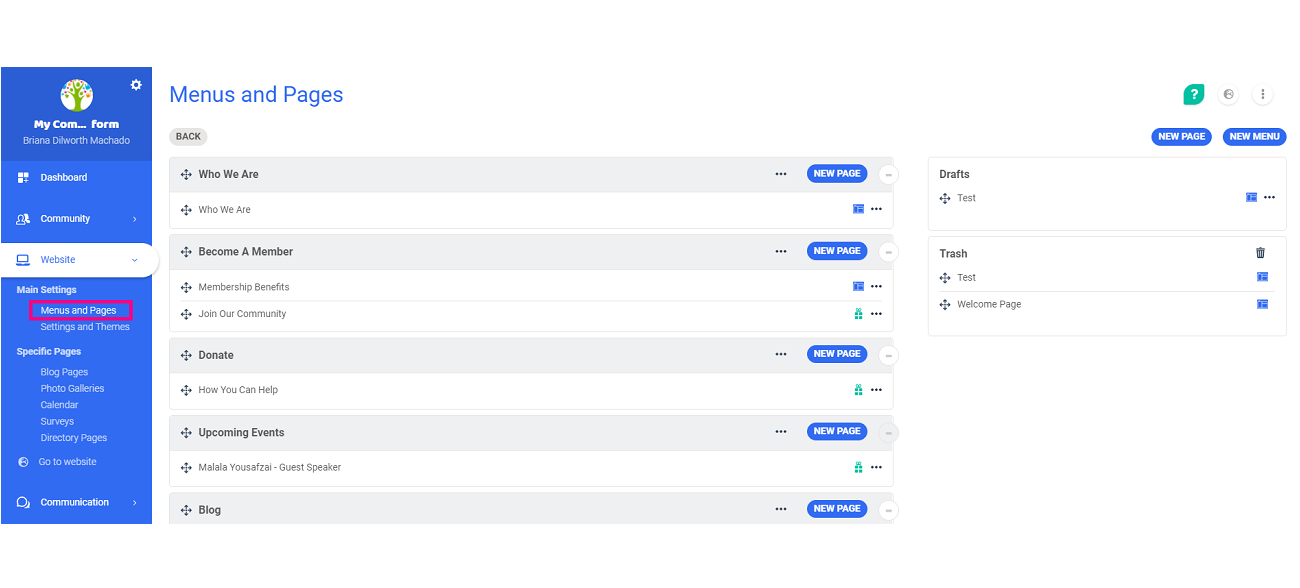
Manage visibility of the website menus and pages
Limit visibility
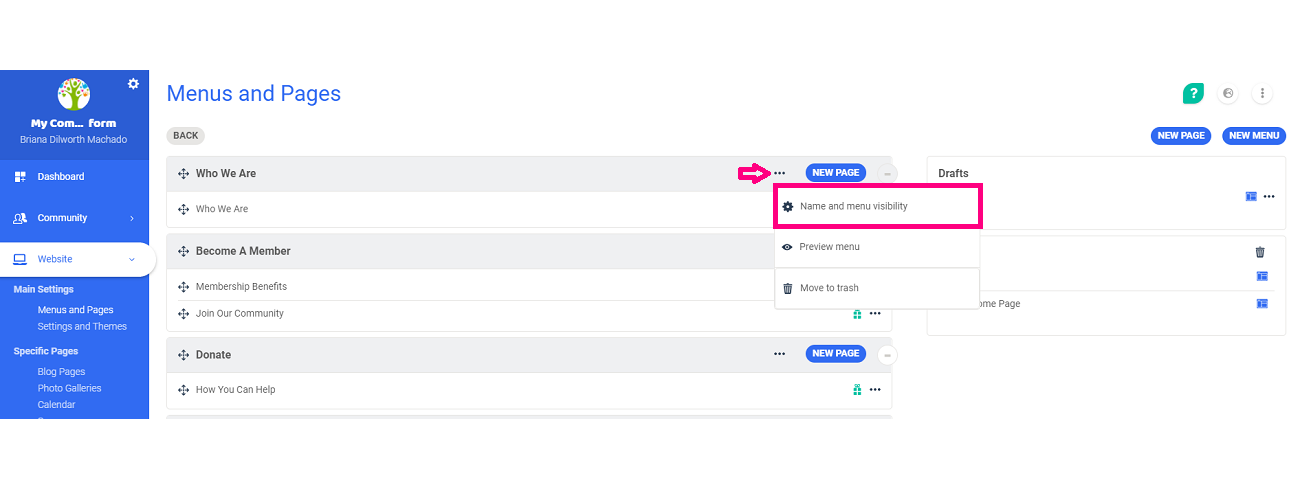
When you create a new menu or a new page, you can define its visibility. Click on the  icon of the menu or the page concerned, and select Name and menu visibility.
Change the accessibility of the menu or the page by clicking on the audience you would like to be able to view the page.
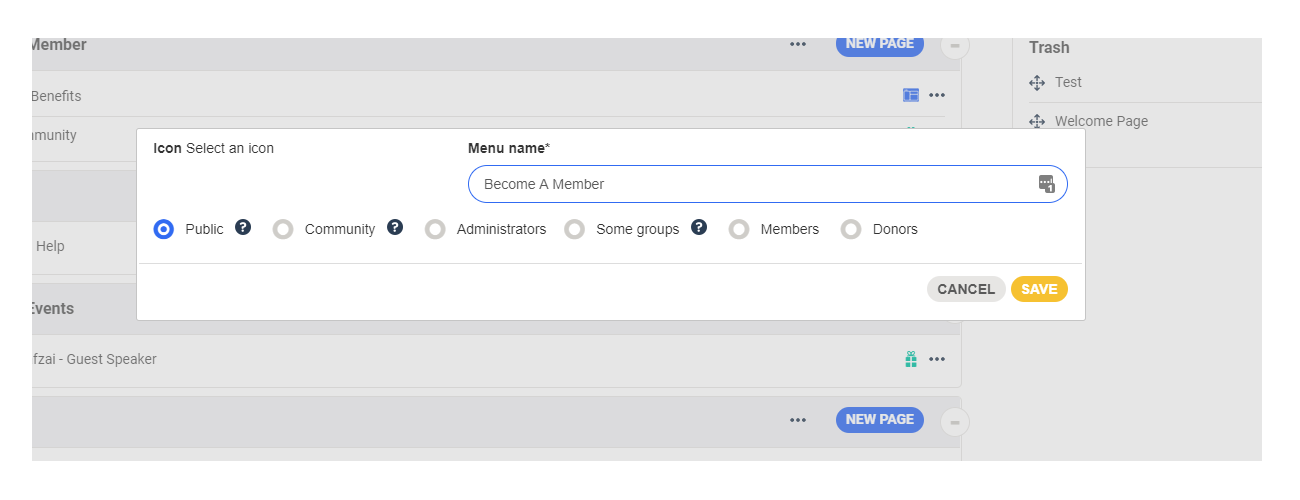
Once you save these changes, the menu or page will no longer be visible to the public.
The default visibility of menu pages
If you limit the visibility of a new menu, the same settings will be applied by default to pages in your menu. You will have to change the settings of the page if you want it to have specific visibility.
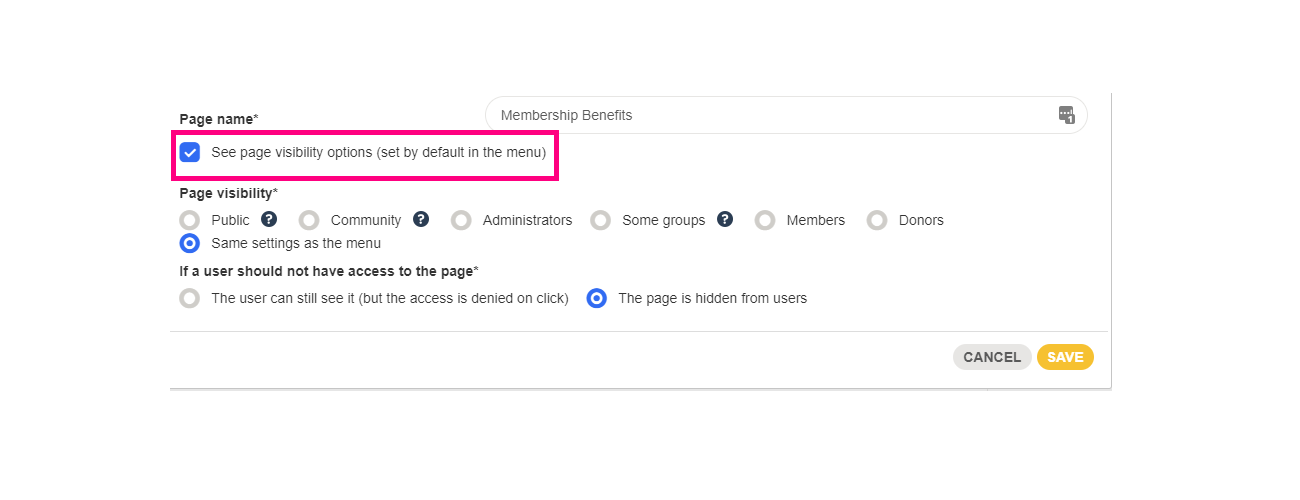
Visibility Options
Below are the different options available for the visibility of your menu and/or page.
- Public: accessible to everyone, even without being connected (members/nonmembers)
- Community: only accessible to logged-in users (members)
- Administrators: only accessible to platform administrators
- Groups/donors/members: accessible to certain categories of members
- Same settings as the menu: this will use the same settings configured for the menu
More info on this subject:
Comments
0 comments
Article is closed for comments.