On the platform, you are able to allow your users to connect to their member space to view walled content, manage their profile, access their receipts, etc.
Depending on your decide use of this feature, it may be relevant to make this login/registration space visible on your website.
This article explains how to highlight this feature, or hide it.
Add/Remove login button at the top of the page
To highlight/hide the login button in the menu:
- Go to your Administration area
- Click on the Website feature
- Highlight and select the Header area of your page
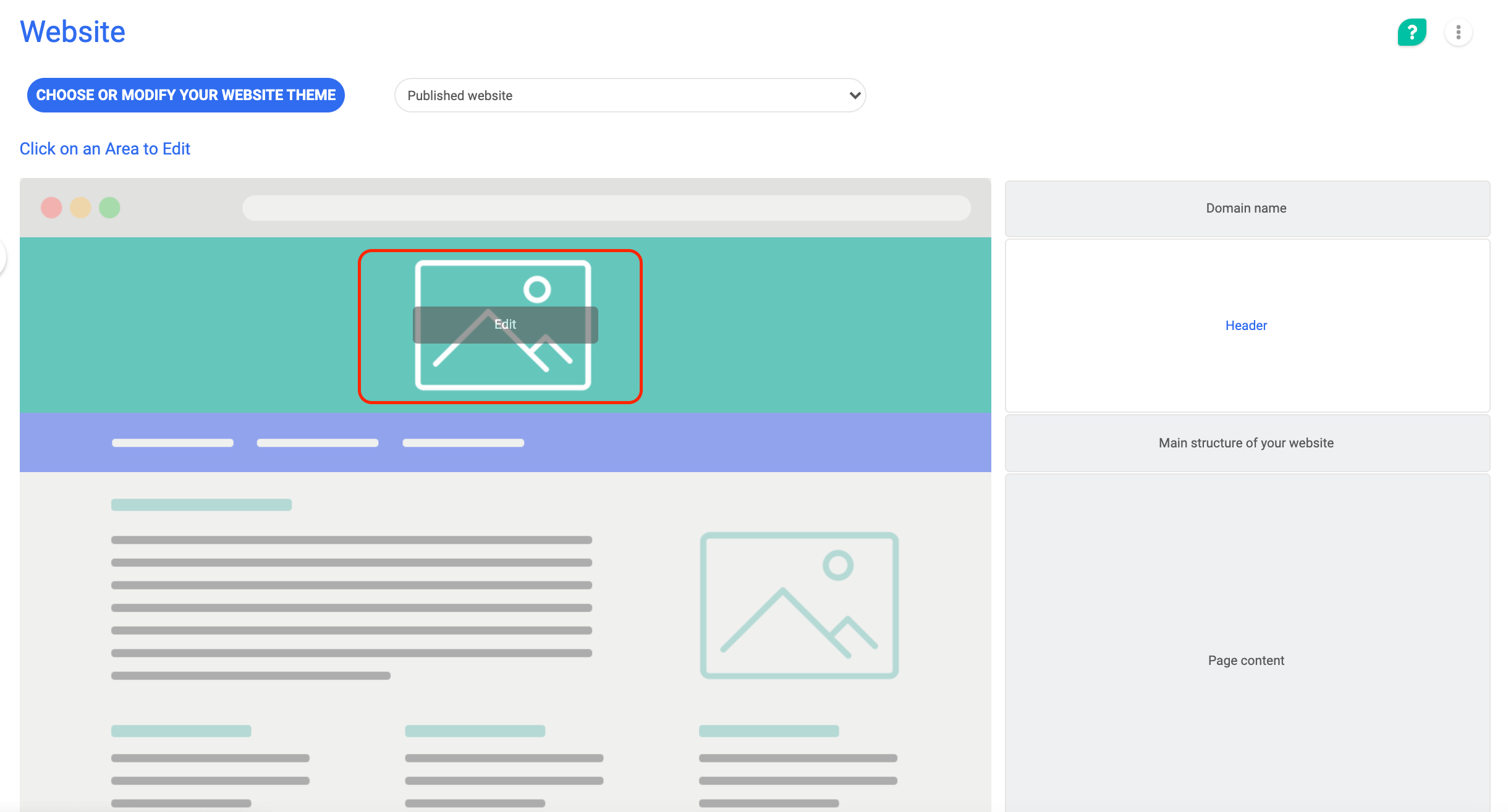
- Select the area which allows you to edit the Menu of your Website
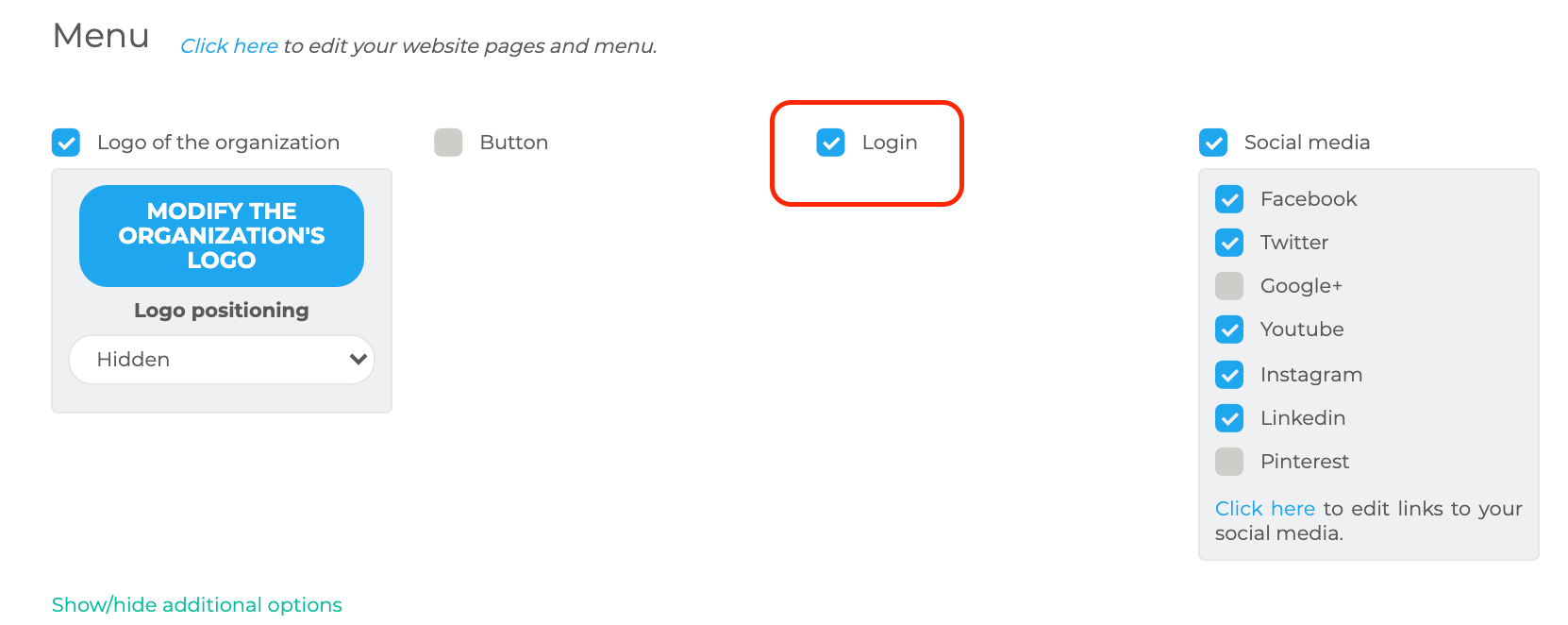
- Select or deselect the 'Login' checkbox
If you select 'Login', the Login button will be visible on your menu.
If you do not select 'Login', the Login button will no longer be visible on your Menu. Members will have to go to the bottom of the page to log in to access walled content or log in while making a purchase.
Comments
0 comments
Article is closed for comments.