Before Starting
If you're trying to integrate an iframe into your website but the tool isn't accepting the link or the iframe isn't displaying properly, then no worries: this article will help you understand the problem and resolve it!
There are several reasons why an iframe might not be working as it should.
Apple put in place a restriction which creates a malfunction on Safari: the iframe doesn't work if the person registering has not visited the nonprofit's AssoConnect website first.
What Is an Iframe?
An iframe, short for inline frame, can be integrated into a website and it acts a sort of open "window" onto another website. Through this "window", users can see and interact with the content of the other website.
It is possible to, for example, add a Google map on your website to indicate the address of your office:
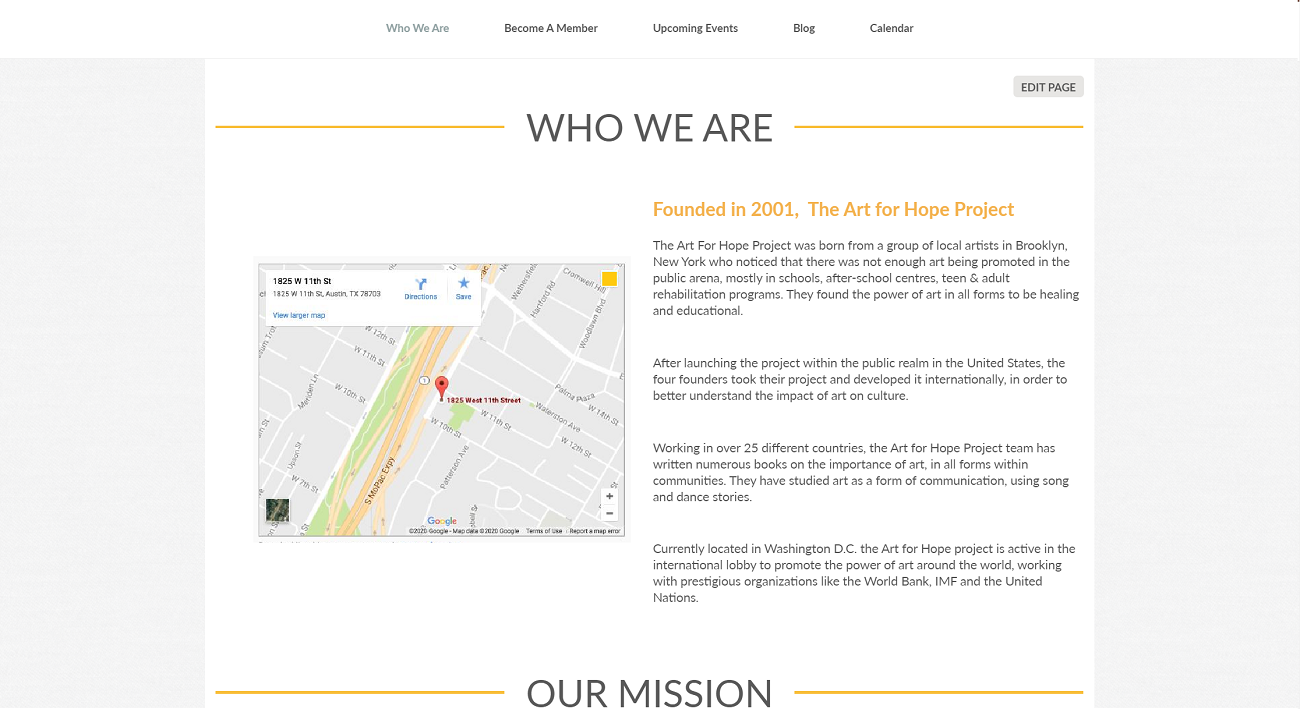
If you do not want to use the website feature on AssoConnect, an iframe is used to display your ticketing and registration campaigns on your external website. These campaigns include your donation and membership campaigns, as well as your store and event registration created on AssoConnect.
It is possible that the iframe sometimes does not display as it should. Below are some reasons why this could be happening.
Main Causes of Error
The Iframe Code Is Not Correct
This should be the first thing that is checked in case there is a problem displaying the iframe or if an error message appears. It is very easy to forget part of the code, so simply copy and paste it again, and press enter.
If this does not resolve the problem, move on to the next hypothesis.
The AssoConnect Website Is Not Active
Whilst your AssoConnect website is under maintenance, the campaigns integrated as iframes will only be visible by the admins.
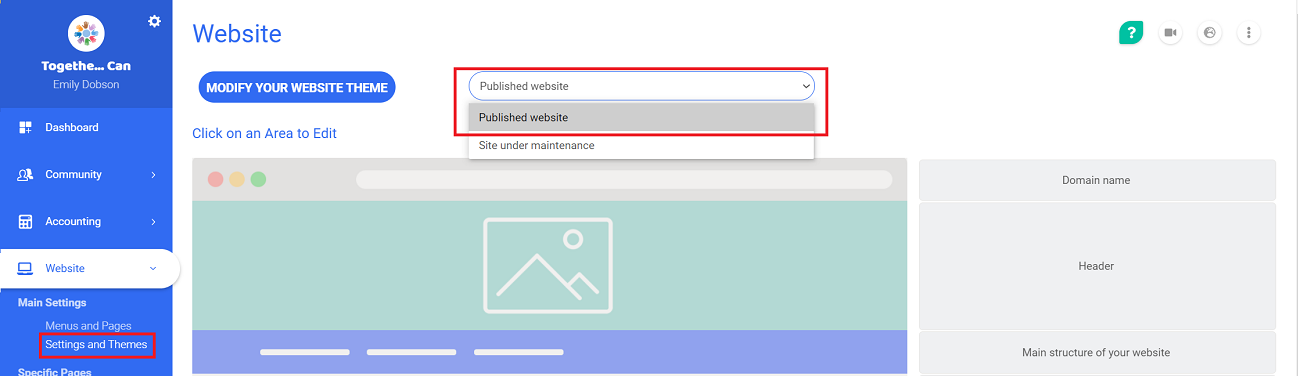
Even if you are not using the website feature, all iframes are linked to the AssoConnect website. This is why the website needs to be published. To do so, head over to the page Website > Settings and Pages and select the option of Published website in the drop-down menu at the top.
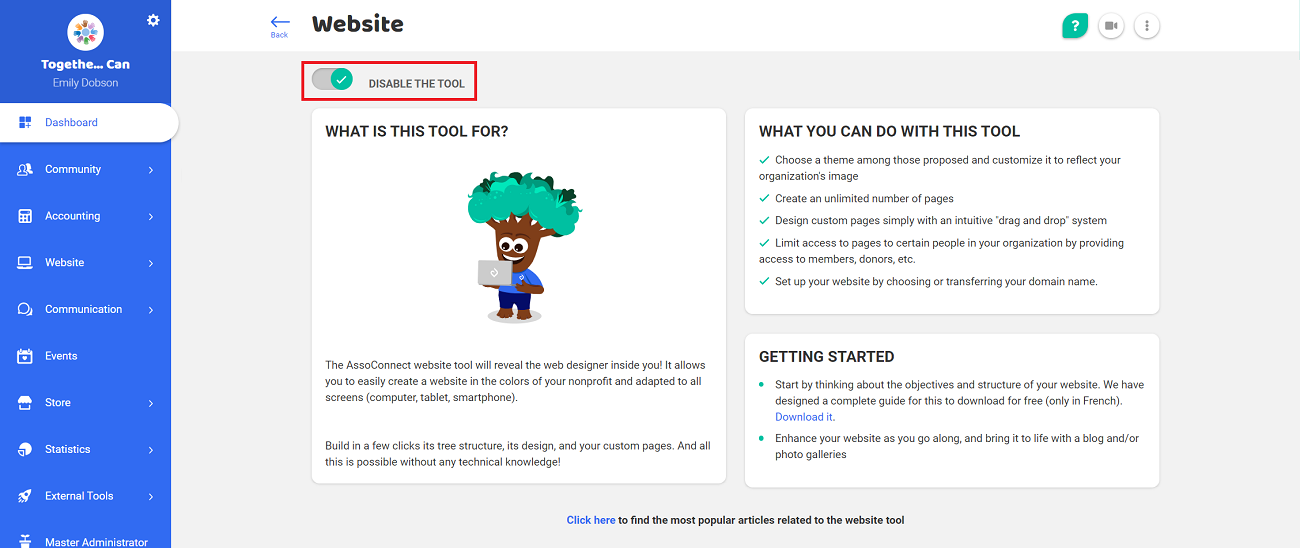
If you do not want to use an AssoConnect website, simply deactivate the website feature once the previous step is completed. To do so, head over to Features > Website and disable the option. The URL of the website will then only display the login page to the contacts section.
If these two possible causes have not resolved your problem, another problem is likely occurring with the SSL certificate.
Problem with the SSL Certificate
Identifying an SSL Certificate Problem
If you are trying to put insert content using an iframe, but have this error:
The URL must start with https://
This problem occurs when trying to add an iframe to a website that is not an https. The "s" in https guarantees that the page is secure. A page becomes an https page when it activates an SSL certificate. In this case, the website which you are trying to integrate an iframe into has not activated the SSL certificate, whereas your website has activated it.
It is highly advised not to use an iframe if the two websites do not follow the same protocols. Aka, you shouldn't be mixing https websites with http ones. Here's why:
- The protocol https becomes obsolete (and will reduce the security of your website)
- Most browsers block this type of request: if you do it, certain browser will not display your iframe content
Resolving This Problem
To resolve this problem, there are two solutions:
- You can replace the content you wanted to show in the iframe with content that comes from an https website
- You can make sure the two websites follow the same protocol
i.e. If your website is in https and the content you want to insert in iframe follows an http protocol, you can install an SSL certificate on the website you are trying to display in iframe, or see if the website exists in https format.
Comments
0 comments
Article is closed for comments.