Before Starting
In order to differentiate each contact in your CRM, the software uses a unique user ID for each person. Different fields can be used for this, and you get to decide which one the software should use for your CRM.
The unique user ID is also used to avoid any duplicates in your contacts when information on multiple people is updated using the Excel import function. For this, the data imported will need to include a column with a unique user ID.
If you've given website access to your contacts, they will also use this as their login identifier.
This article will cover the following points:
You can modify the unique user ID in the Settings page at the top left of the screen. You can also access this page through Community > Settings.

Which Unique User ID Should You Use?
Your unique user ID can take one of the following three forms: an email address, a contact's ID, or a specific field. All three options will be discussed in more detail below.
Email Address
The first & last names alone cannot be used to differentiate your contacts as there might be homonyms within your CRM. Luckily, email addresses are unique, and as such, they can be used as a unique user ID!
If this option is chosen, your contacts will be able to log in using their email address.
If some of your contacts don't have an email address or if some of your contacts share one, this identifier will not be the best option for your CRM.
Contact ID
If some of your contacts do not have an email address or if multiple people share one, you can choose to use the contact ID. This is a series of numbers automatically generated by the software, and there is one for each contact.
You can access the Contact's ID from Community > Contacts by selecting this column in the CRM.
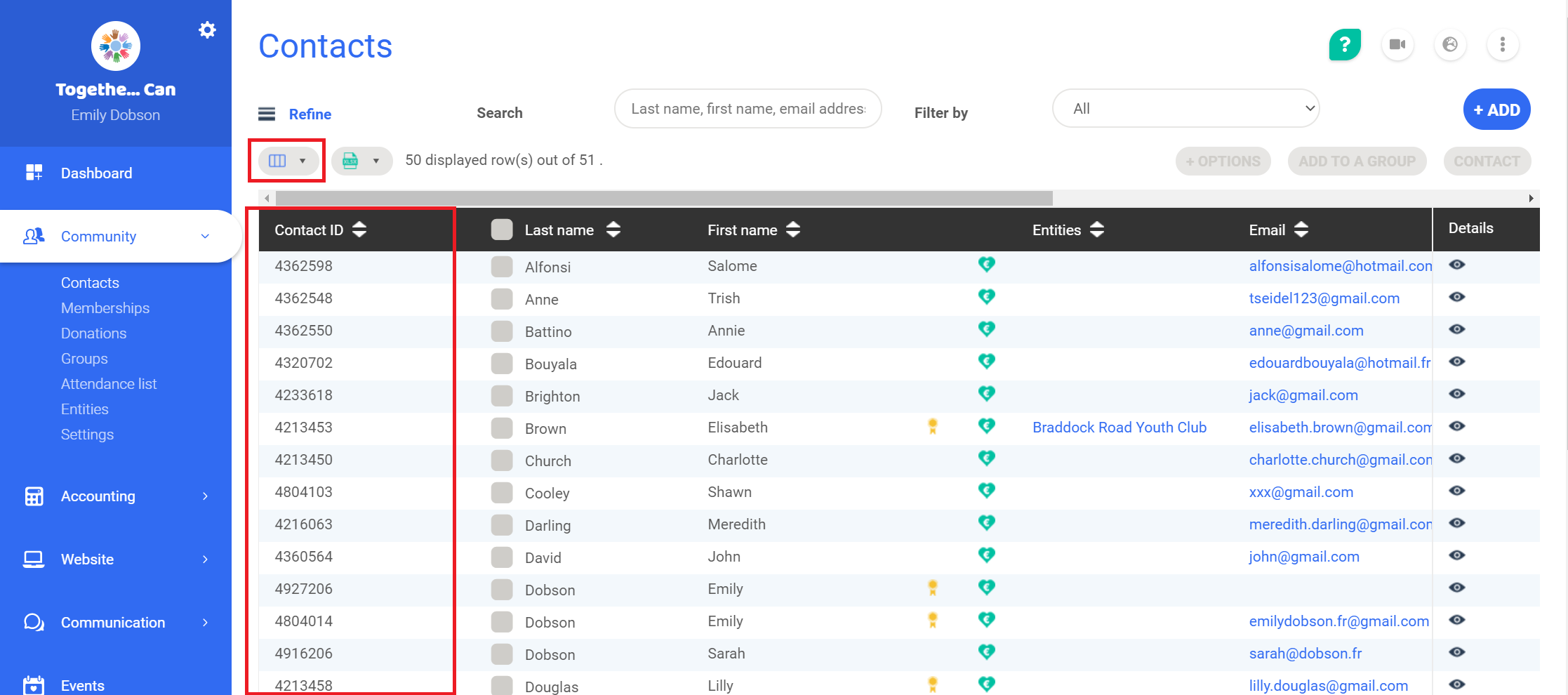
With this option, a person will only be able to log in (have access to their information and make purchases on their own) if they have entered their email address.
When updating contact information via an Excel import, the ID column needs to be part of the datasheet that is copied & pasted. This will help you avoid any duplicates.
Specific Field
If your CRM already has a column that helps identify each contact (registration number or license number for example), you can use this as their unique user ID.
All you need to do is go to Settings, click Edit on the Unique User ID section, select Custom ID and find the column you want to use in the dropdown menu.
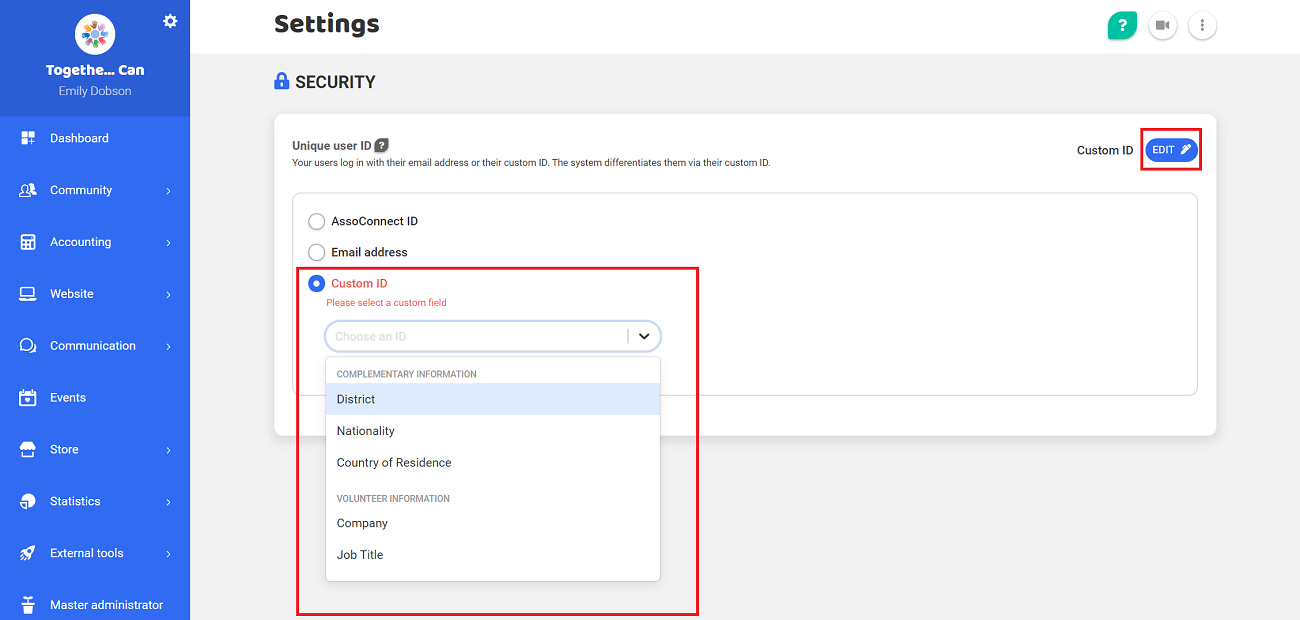
If you choose this option, every person in your CRM will be recognized using this field. Contacts will be able to log in using this information or with their email address.
This specific field should be included when you import multiple contacts via Excel.
Additionally, a person can register temporarily without filling in this field and appear in your CRM, as long as they provide their email address. This is useful for example if a new player hasn't been assigned a registration number yet.
Users Without Unique Email Addresses
You may have people in your CRM who do not have an email address or multiple people who share one. This is, for example, the case when children use the same email address as their parents.
A person who does not have an email address will not receive emails from the software (receipts, invoices, password changes). Additionally, if they are added manually, they will not be informed of the creation of their account.
In this case, you should choose a unique user ID that doesn't rely on email addresses. This means you can use instead:
- Contact ID: all the accounts associated with the same email address will be proposed when the user logs in with the email. They will simply need to choose their account and enter their password.
- Specific field: the users can connect with this identifier instead of with their email address.
Comments
0 comments
Article is closed for comments.